Microsoft Windows Hardening
General Concepts
Services
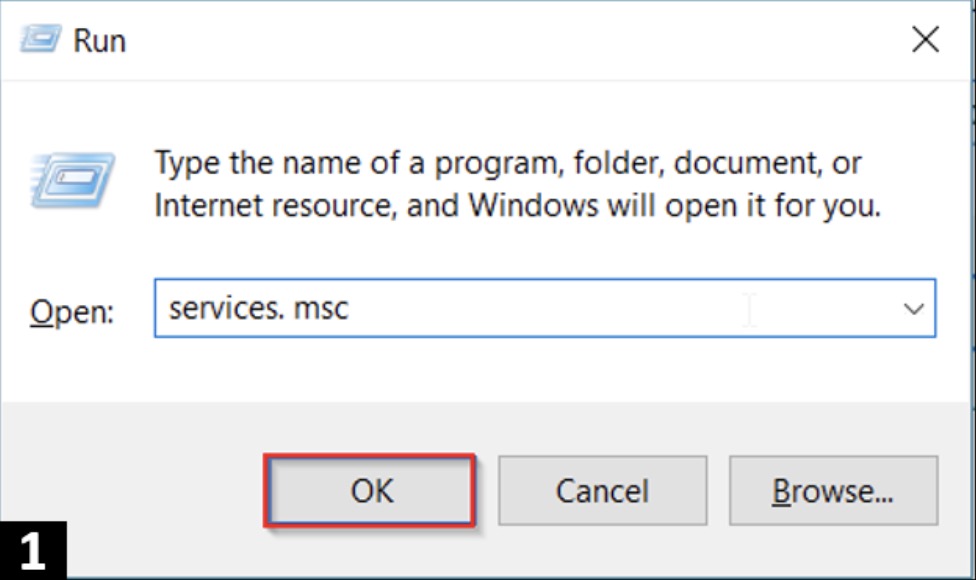
Windows Services create and manage critical functions such as network connectivity, storage, memory, sound, user credentials, and data backup and runs automatically in the background.
Press Win + R, type services.msc, and press Enter.
(source tryhackme)
Windows Registry
Is a container database that stores configurational settings, essential keys and shared preferences for Windows.
It is always recommended to protect the registry editor by limiting its access to unauthorised users.
Press Win + R, type regedit, and press Enter.
Event Viewer
Is an app that shows log details about all event on the computer includinf updates, hardware failures, changes in the operating systems.
Press Win + R, type eventvwr, and press Enter.
Standard vs Admin Account
Admin account should only be used to:
- Software Installation
- Accessing the regiter editor
Accesing Accounts Control Panel > User Accounts
Windows Hello: Allows authenticating someone based on “something you have, something you know or something you are”.
Settings > Accounts > Sign-in Options.
User Account Control (UAC)
Is a feature that enforces enhanced access control and ensures that all services and applications execute in non-administrator accounts.
Solved:
- malware's impact and minimises privilege escalation.
To access UAC: Control Panel -> User Accounts
Change User Account Control Setting.
Local Policy and Group Policies Editor
It allows to configure and implement local and group policies.
Note: The feature is not available in Windows Home but only in the Pro and Enterprise versions.
Password Policies
Ensures complex and strong passwords for user accounts.
NIST Special Publication 800-63B
Security settings > Account Policies > Password policy
Setting A Lockout Policy
Setting out a lockout policy so the account will automatically lock after certain invalid attempts.
Local Security Policy > Windows Settings > Account Policies > Account Lockout Policy
Network Management
Windows Defender Firewall
Protects computers from malicious attacks and blocks unauthorised traffic through inbound and outbound rules or filters
Press Win + R, type WF.msc, and press Enter.
It has three profiles:
- Domain
- Public
- Private: must be activated with "Blocked Incoming Connections" while using the computer at home.
Disable unused Networking Devices
go to the Control panel > System and Security Setting > System > Device Manager and disable all the unused Networking devices.
Disable SMB protocol
The protocol is primarily used for file sharing in a network; therefore, you must disable the protocol if your computer is not part of a network.
Disable-WindowsOptionalFeature -Online -FeatureName SMB1Protocol
Path          :
Online        : True
RestartNeeded : False
Protecting Local Domain Name System (DNS)
The hosts file is located at C\Windows\System32\Drivers\etc\hosts
Mitigating Address Resolution Protocol (ARP) Attack
This protocol translates logical IP's adresses into physical MAC address so they can communicate on a local network.
To clear the ARP cache and prevent an ARP poisoning attack, issue the command arp -d.
bytePC@byteMachine$ arp -a
Interface: 192.168.231.2 --- 0x5
  Internet Address      Physical Address      Type
  192.168.266.255       ff-ff-ff-ff-ff-ff     static
  224.0.0.2             01-00-5e-00-00-02     static
  224.0.0.22            01-00-5e-00-00-16     static
  224.0.0.251           01-00-5e-00-00-fb     static
  224.0.0.252           01-00-5e-00-00-fc     static
  239.255.255.250       01-00-5e-7f-ff-fa     static
Preventing Remote Access to Machine
Disable remote access (if not required) by going to settings > Remote Desktop
Application Hardenning
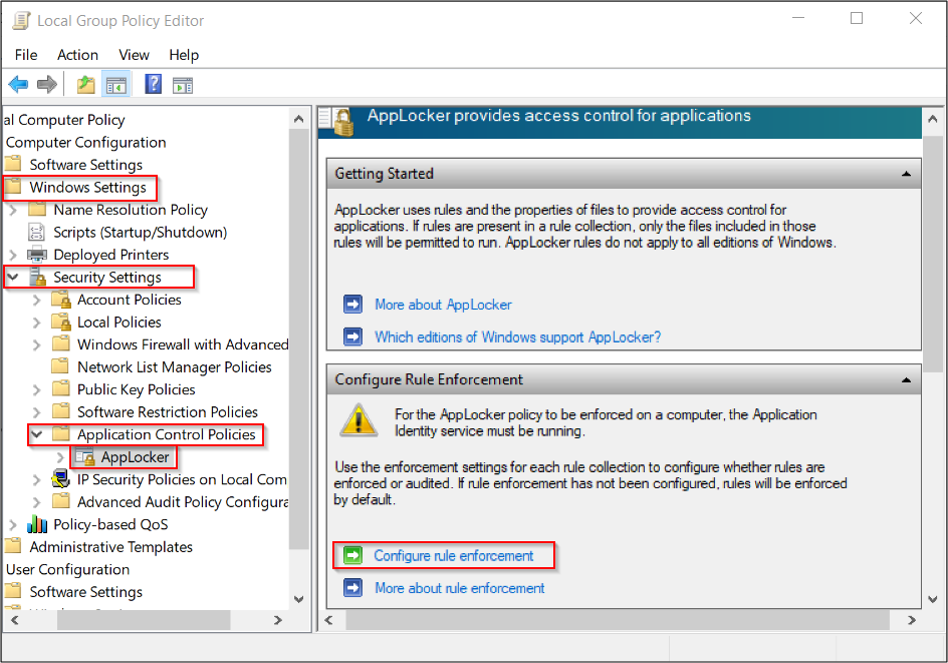
AppLocker
Is a feature that allows users to block specific executables, scripts, and installers from execution through a set of rules.
(source tryhackme)
Protecting the Browser through Microsoft Smart Screen
To turn on the Smart Screen, go to Settings > Windows Security > App and Browser Control > Reputation-based Protection. Scroll down and turn on the SmartScreen option
Storage Management
Data Encryption Through BitLocker
Go to Start > Control Panel > System and Security > BitLocker Drive Encryption
Windows Sandbox
To run applications safely, I can use a temporary, isolated, lightweight desktop environment called Windows Sandbox.
Click Start > Search for 'Windows Features' and turn it on > Select Sandbox > Click OK to restart