Azure Policy definitions
Configuring a security control once doesn't mean it stays enforced. A storage account deployed today with HTTPS-only enabled can coexist with a storage account deployed next week that allows HTTP traffic unless you implement preventive governance controls.
Key definitions
- The policy effect determines what happens when a resource evaluation detects a policy violation.
- Assign policy: Assign one Azure Policy.
- Assign initiative: Assign a group of related policies (a policy set) in one assignment.
- Policy = one rule. Initiative = multiple rules managed together.
- Locks prevent deletion or modification of critical resources, understand lock inheritance behavior, and control who can create and remove locks.
Azure Policy supports several effects, but four are essential for security governance workflows:
| Effect | What it does | When to use it |
|---|---|---|
| Audit | Evaluates the resource and marks it noncompliant in the compliance dashboard but takes no other action | Phase 1 of a rollout discover noncompliant resources without disrupting operations |
| Deny | Blocks the resource creation or update request at the Azure Resource Manager (ARM) layer before the resource is created; the request returns an error | Phase 2 of a rollout enforce the policy after remediating existing resources |
| DeployIfNotExists | Evaluates whether a related resource or setting exists; if it doesn't, deploys it automatically | Configurations that need to be provisioned alongside a resource (example: deploying diagnostic settings on every VM) |
| Modify | Automatically adds, updates, or removes a tag or property on a resource at creation or update time | Enforcing resource tagging standards or default configurations |
With the Deny effect, Azure blocks the resource creation or update request entirely. When a developer attempts to deploy a storage account with HTTP enabled, the ARM template deployment fails immediately with an error message referencing the policy. The policy prevents new noncompliant resources from entering the environment.
Audit-First
Use the Audit-first rollout pattern: assign a policy with the Audit effect, review the compliance results, communicate the findings to application teams, and then switch the effect to Deny after remediating the existing noncompliant resources.
Policy assignments inherit through the Azure resource hierarchy: management group → subscription → resource group → resource. The scope you choose determines which resources the policy evaluates.
Assigning a policy at the management group scope covers every subscription within that management group, including new subscriptions added in the future. For organization-wide baseline controls, this approach works best.
Assigning at the subscription scope only covers resources within that subscription. New subscriptions created later aren't covered automatically.
Resource group and resource scopes exist but are rarely used for security policies. Security controls typically apply broadly rather than to individual resources.
Exclusions let you carve out exceptions to a management group-level assignment. When a specific subscription, resource group, or resource has a justified exception, you exclude that scope from the assignment. For example, byteGirl might exclude a sandbox subscription used for proof-of-concept testing from the production security policies. Use exclusions sparingly and document the business justification.
Built-in definitions
Location: Policy → Definitions → filtering by the Category field. The "Security Center" category contains security-focused definitions, while categories like "SQL," "Storage," and "Key Vault" contain service-specific policies.
Key built-in definitions for a security baseline include:
- "Transparent data encryption on SQL databases should be enabled:" Audit or Deny effect; targets
Microsoft.Sql/servers/databasesresources. Detects SQL databases without TDE encryption. - "Secure transfer to storage accounts should be enabled:" Audit or Deny effect; targets
Microsoft.Storage/storageAccountsresources. Blocks storage accounts that allow HTTP traffic. - "Storage accounts should restrict network access:" Audit effect; evaluates storage account network rules to ensure public access is limited.
- "Azure Key Vault should use private link:" Audit effect; detects Key Vaults exposed to the public internet.
- "Diagnostic logs in Azure Key Vault should be enabled" AuditIfNotExists effect; checks whether Key Vault diagnostic settings are configured.
The Microsoft Cloud Security Benchmark initiative contains dozens of security definitions covering compute, networking, data, identity, and privileged access. Assigning an initiative is more efficient than assigning definitions one by one, and it ensures all related controls deploy together.
Assign a built-in initiative using Microsoft Cloud Security Benchmark
- In the Azure portal, go to All services → Policy → Assignments → + Assign initiative.
- Under Scope, select the ellipsis (
...) and choose the management group that covers all byteGirl subscriptions. This ensures every subscription inherits the assignment. - Under Initiative definition, search for
"Microsoft Cloud Security Benchmark"and select it from the built-in initiative list. - Under Parameters, review the default parameter values. Most built-in definitions default to the Audit effect for initial rollouts. Override individual policy parameters if needed (for example, changing a specific definition from Audit to Deny).
- Under Remediation, leave the checkbox unchecked for an Audit rollout. Remediation tasks apply to policies with DeployIfNotExists or Modify effects, which you configure after the initial assessment phase.
- Under Non-compliance messages, optionally enter a custom message that appears when a resource is blocked by a Deny policy. For example: "This resource configuration violates byteGirl security policy. Contact security@bytegirl.be for assistance."
-
Review the assignment details and select Create.
Note
After the assignment completes, Azure begins evaluating all resources within the scope during the next policy evaluation cycle. This process runs automatically every 24 hours.
To view compliance results:
-
Go to Policy → Compliance to open the compliance dashboard.
- The overall compliance percentage shows the fraction of resources meeting all assigned policies. A lower percentage indicates more noncompliant resources.
- Select a specific policy definition to see the list of noncompliant resources with their reason code and location.
Review the compliance dashboard for byteGirl's findings
I review the compliance dashboard and I discover significant gaps.
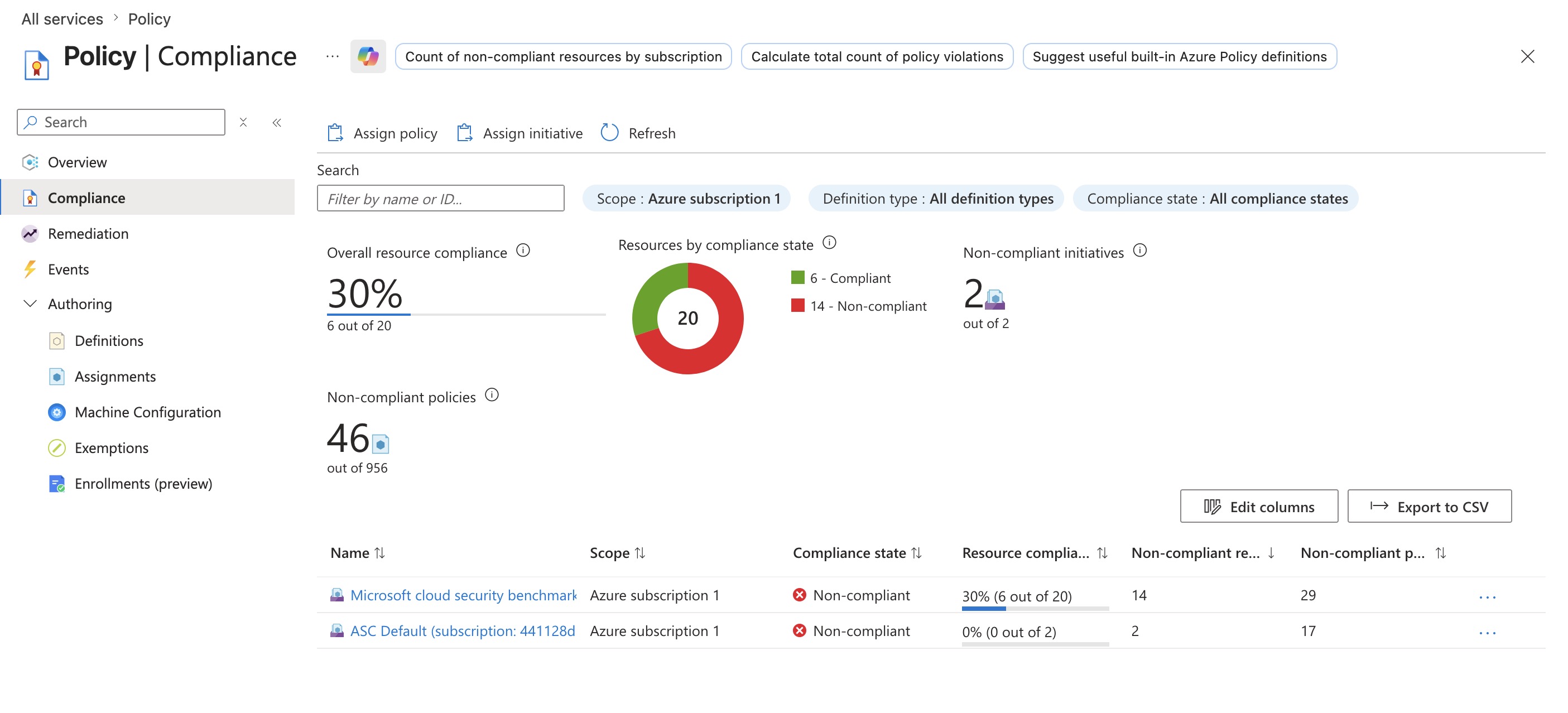
How to read it?
Example:
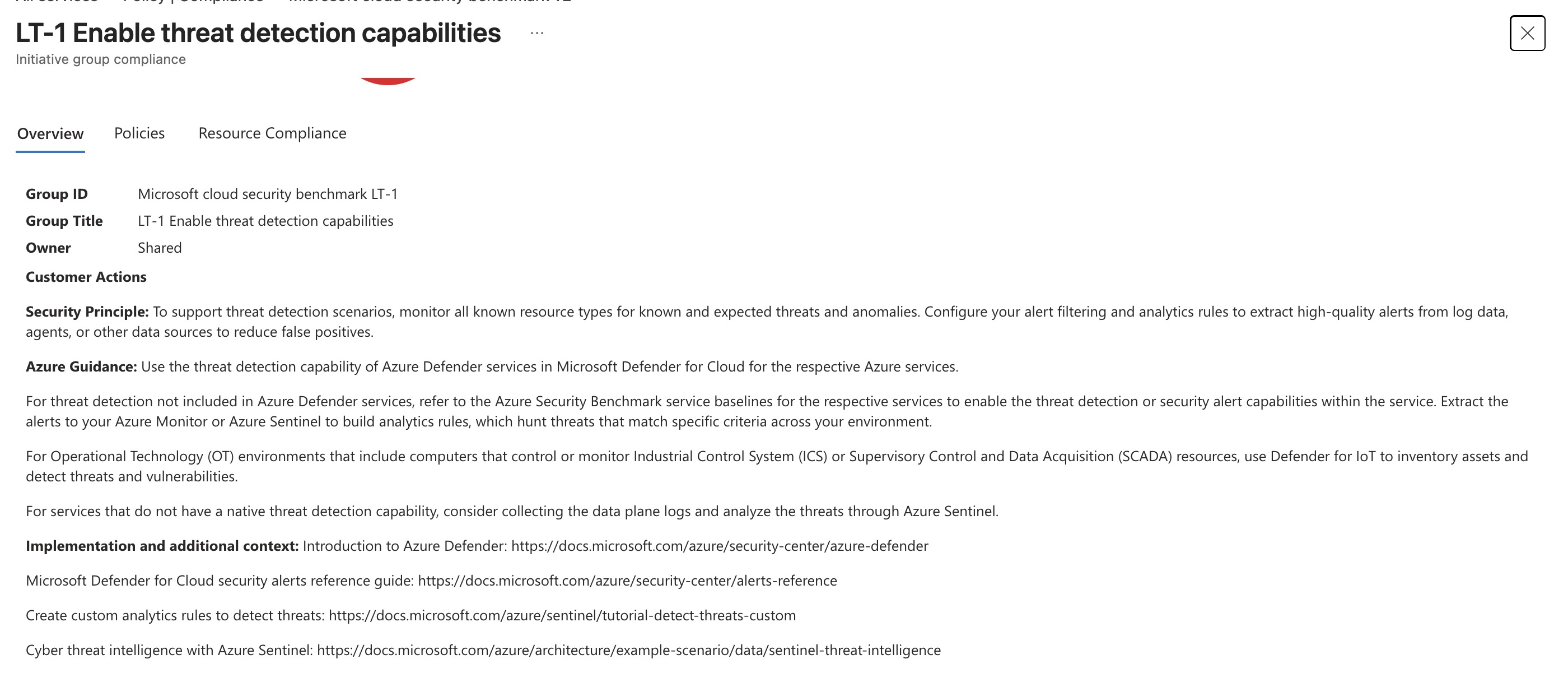
This screen is not a recommendation that you enable with one button. It is a security benchmark control (LT-1) that groups several recommendations together.
- LT-1 = Security control (Enable threat detection capabilities).
- Customer Actions = What Microsoft recommends you do.
- Azure Guidance = Services to use (Defender for Cloud, Microsoft Sentinel, Azure Monitor, etc.).
- Policies tab = Shows the individual policies/recommendations that make up this control.
- Resource Compliance = Shows which resources are compliant or non-compliant.
How to remediate?
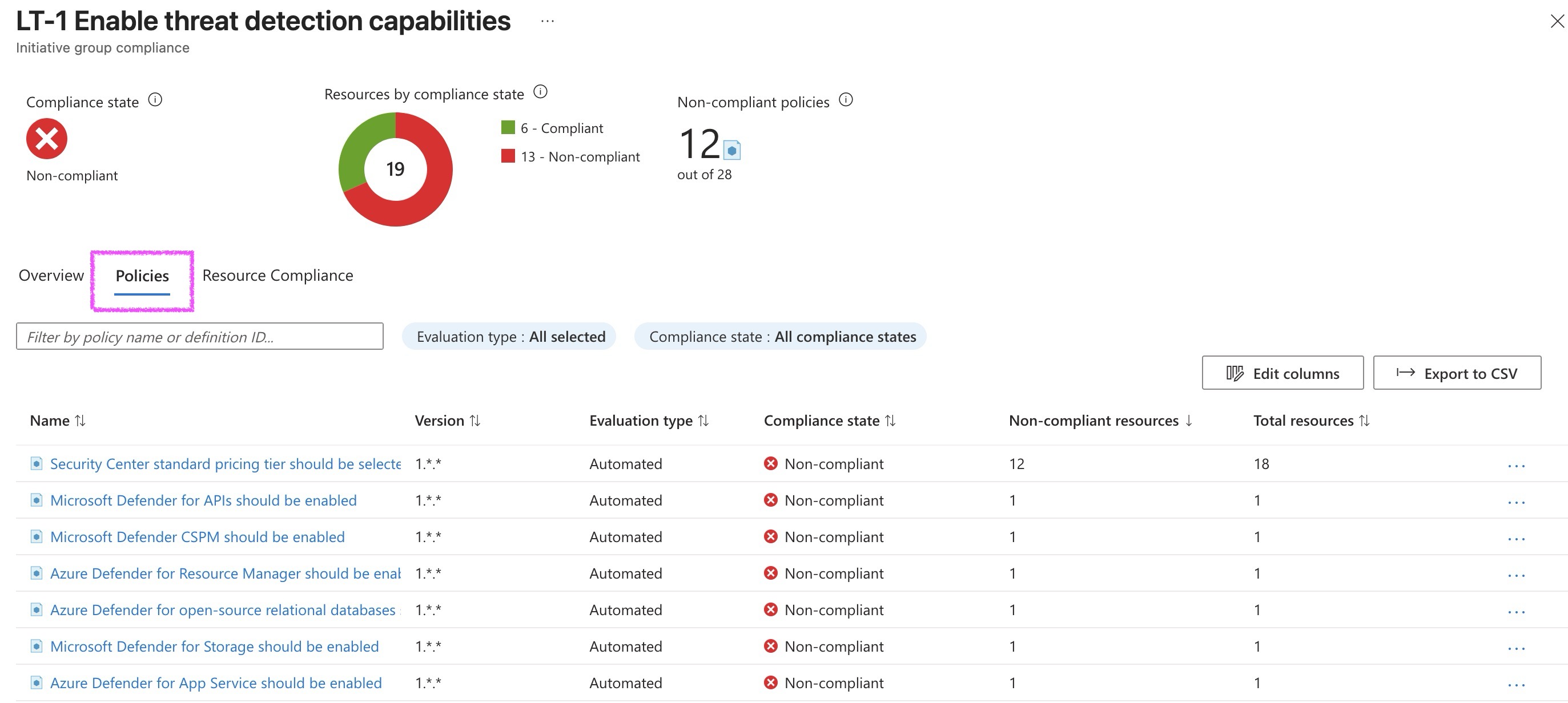
- Open the Policies tab.
- Click a policy that is Non-compliant.
- Read the remediation message.
- Apply the required configuration (for example, enable a Defender plan, turn on diagnostic logs, or enable a security feature).
- If available, click Remediate to let Azure fix it automatically.
(Note to myself: Go deeper in this later)
Anatomy of
A custom policy definition uses a JSON (JavaScript Object Notation) structure with three core components: mode, parameters, and policyRule. Understanding each component helps me build definitions that enforce exactly what my organization requires.
{
  "properties": {
    "displayName": "Storage accounts must use the approved Log Analytics workspace",
    "description": "Ensures diagnostic settings on storage accounts send logs to the byteGirl central Log Analytics workspace.",
    "mode": "All",
    "parameters": {
      "approvedWorkspaceId": {
        "type": "String",
        "metadata": {
          "displayName": "Approved Log Analytics workspace ID",
          "description": "The resource ID of the required Log Analytics workspace."
        }
      },
      "effect": {
        "type": "String",
        "defaultValue": "AuditIfNotExists",
        "allowedValues": ["AuditIfNotExists", "Disabled"]
      }
    },
    "policyRule": {
      "if": {
        "field": "type",
        "equals": "Microsoft.Storage/storageAccounts"
      },
      "then": {
        "effect": "[parameters('effect')]",
        "details": {
          "type": "Microsoft.Insights/diagnosticSettings",
          "existenceCondition": {
            "field": "Microsoft.Insights/diagnosticSettings/workspaceId",
            "equals": "[parameters('approvedWorkspaceId')]"
          }
        }
      }
    }
  }
}
The mode property determines which resource types the policy evaluates. Use "All" to evaluate all resource types, including those without tags and location support, such as diagnostic settings and network security rules. Use "Indexed" to evaluate only resource types that support tags and location, which is appropriate for policies that check tag compliance or regional restrictions.
Parameters make the definition reusable across different environments and scopes. The approvedWorkspaceId parameter lets you specify a different Log Analytics workspace for each assignment without modifying the definition. Always include an effect parameter with allowedValues so the assignment can toggle between audit mode during testing and enforcement mode in production.
The policyRule contains two sections: if and then. The if section defines the condition that triggers evaluation, using the field keyword to access resource properties like type, location, tags, or SKU. The then section specifies the action when the condition is true, referencing the effect parameter. For AuditIfNotExists and DeployIfNotExists effects, the details.existenceCondition section checks whether the required associated resource or property exists.
Create a custom definition in the portal
Creating a custom definition in the Azure portal involves setting the scope. Then providing metadata that helps security teams find and understand the definition, and pasting the policy rule JSON you authored.
- In the Azure portal, go to Policy > Definitions > + Policy definition.
- Set Definition location to your management group. This makes the definition available for assignment in all child subscriptions, ensuring consistent enforcement across your entire Azure tenant.
- Enter a Name that clearly describes what the policy enforces, such as "Require byteGirl central Log Analytics workspace."
- Enter a Description that explains the business justification and what resources the policy targets.
- Set Category to an existing category like "Monitoring" or create a new category like "byteGirl Security Baseline" to group organization-specific definitions.
- Paste my JSON policy rule into the POLICY RULE editor.
- Add parameters using the parameter editor if you need to make values configurable at assignment time.
- Save
Configuring a remediation task for existing noncompliant resources
Custom policies with DeployIfNotExists effects identify noncompliant resources but don't automatically fix them. Remediation tasks apply the required configuration to existing resources that were created before the policy assignment or that became noncompliant due to configuration drift.
Remediation tasks require a managed identity assigned to the policy assignment. The managed identity must have the role-based access control (RBAC) permissions needed to deploy the required resource. For a policy that deploys diagnostic settings, the managed identity needs the "Monitoring Contributor" role. For a policy that configures network security rules, the managed identity needs "Network Contributor."
- In the Azure portal, go to Policy > Remediation > + Remediation task.
- Select the policy assignment that uses the DeployIfNotExists effect.
- Select the scope where you want to remediate noncompliant resources, such as a specific subscription or management group.
- Under Managed identity, confirm the managed identity location matches the region where you plan to deploy resources. Azure creates the managed identity in this region.
- Under Locations to remediate, select the Azure regions where noncompliant resources exist.
- Select Start remediation task.
Policy exemptions
Azure Policy supports two exemption categories:
- A waiver exemption indicates the organization accepts the risk identified by the policy. No compensating control is in place, but leadership reviewed the risk and decided it's acceptable for this specific resource, often due to business constraints or legacy system limitations.
- A mitigated exemption indicates a compensating control addresses the same security objective that the policy targets. The resource doesn't technically comply with the policy definition, but the underlying security requirement is satisfied through an alternative mechanism.
Implementing resource locks
Azure Policy prevents noncompliant resources from being created, but critical resources that already exist and are correctly configured still need protection from accidental or malicious deletion.
| Lock type | Effect | Common use cases |
|---|---|---|
| Delete | Prevents resource deletion; allows read and write operations | Virtual networks, Network Security Groups (NSGs), Recovery Services vaults, Key Vaults, DNS zones |
| ReadOnly | Prevents resource deletion and modification; allows read operations only | Configuration-only resources with no runtime write operations |
Difference between Delete and ReadOnly locks
Delete lock, Azure prevents the resource from being deleted while still allowing all read and write operations to succeed. This lock type protects production resources from accidental deletion without interfering with normal operations, making it the most commonly used lock type.
ReadOnly lock, Azure prevents the resource from being deleted or modified, allowing only read operations. This lock type requires careful consideration because it can cause unexpected failures in some scenarios. Applying a ReadOnly lock to an Azure Storage account prevents listing storage keys, because key listing is treated as a write action even though it appears to be read-only. Similarly, a ReadOnly lock on a virtual network can prevent virtual machines from starting in some configurations.
Who can create and remove locks
Resource locks provide separation of duties between users who manage resources and users who control governance. Creating or deleting a resource lock requires the Microsoft.Authorization/locks/write and Microsoft.Authorization/locks/delete permissions, which are granted by the Owner and User Access Administrator built-in roles.
Applying a resource lock in the portal
- Navigate to the resource or resource group you want to protect
- Under Settings, select Locks
- Select + Add
- Enter a Lock name that describes the purpose (for example, network-core-delete-lock)
- Set Lock type to Delete or ReadOnly based on the required protection level
- Optionally add notes explaining why the lock is applied and when it can be removed
- Select OK
Configure Defender for Cloud and manage security standards
Configuring Microsoft Defender for Cloud correctly ensures the tool generates accurate, actionable recommendations that align with your organization's security and compliance requirements. Having 847 recommendations reflect gaps across multiple security standards.
Before I can remediate findings, I need to configure Defender for Cloud's environment settings and assign the right security standards at the appropriate scope.
Environment settings configure before you govern
Defender for Cloud environment settings is where you configure per-subscription settings for data collection, autoprovisioning of monitoring agents, and workload protection plan coverage.
Defender for Cloud can automatically deploy:
- Azure Monitor Agent: Collects security events from VMs and Arc-connected machines.
- Defender for Endpoint sensor: provides endpoint detection and response capabilities on Windows and Linux VMs
- Vulnerability assessment agent: scans VMs for missing patches, misconfigurations, and installed software vulnerabilities.
Security standards what generates recommendations.
Security standards are collections of security controls. Each control contains one or more policy definitions that evaluate resource configurations.
| Standard | Description | Use case |
|---|---|---|
| Microsoft Cloud Security Benchmark (MCSB) | Default baseline covering identity, network, data protection, compute, and logging controls | Foundational security posture assigned to every subscription automatically |
| CIS Microsoft Azure Foundations Benchmark | Community-developed best practices for Azure security configuration | Demonstrate alignment with industry-standard hardening guidance |
| NIST SP 800-53 | US government security controls framework | Federal compliance or vendors serving federal agencies |
| ISO 27001 | International information security management standard | Global compliance for data handling and security management |
| PCI DSS | Payment card industry data security requirements | Organizations processing credit card transactions |
| SOC 2 | Trust service criteria for security, availability, and confidentiality | SaaS providers demonstrating controls to customers |
Microsoft Cloud Security Benchmark is the default standard assigned to every subscription when Defender for Cloud is enabled. It provides the baseline security posture for Azure resources. You can't remove MCSB it remains assigned regardless of what other standards you add. MCSB covers:
- Identity controls (MFA enforcement, privileged access management)
- Network controls (private endpoints, network segmentation).
- Data protection (encryption at rest and in transit)
- Compute security (patch management, secure configurations),
- Logging and monitoring (diagnostic settings, audit trails).
Adding a regulatory standard e.g
- Environment settings → select a subscription, or management group → Security policies → Add more standards → select from the list of built-in standards.
How standards generate recommendations
Each policy definition in security standard maps to a security control. When a resource violates the policy definition, Defender for Cloud surfaces a recommendation.
Recommendations in Microsoft Defender for Cloud represent missing or misconfigured security controls. The Cloud and AI Security Engineer's job is deploying those controls to resources at scale
Remediation workflow
A recommendation in Defender for Cloud identifies a specific security gap on one or more resources. The remediation workflow is straightforward:
- Review the recommendation
- Select the deployment mechanism that fits the control type
- Execute the deployment
- Verify the control is active and the recommendation is resolved
Governance rules—assign ownership and enforce a compliance deadline
Ensure recommendations don't sit unactioned for months the owner receives email notifications, the recommendation appears in their "My items" dashboard in Defender for Cloud, and overdue items are escalated.
Governance rules let the security team operate at scale without manually triaging every recommendation. The rule enforces accountability automatically, and the governance report shows which teams are meeting deadlines, and which teams have overdue items.